AWS CLIにaws loginコマンドが追加され、ブラウザベースの認証によりシンプルかつセキュアにAWS環境へアクセスできるようになりました。
AWS enables developers to use console credentials for AWS CLI and SDK authentication - AWS
アップデート概要
従来、アクセスキーとシークレットアクセスキーをローカル環境に保存しておく必要があったが、aws loginコマンドはブラウザベースの認証を使うため長期的なアクセスキーが不要
ログインユーザには以下の権限が必要
- signin:AuthorizeOAuth2Access
- signin:CreateOAuth2Token
マネージドポリシーの「SignInLocalDevelopmentAccess」か「AdministoratorAccess」は上記2つの権限を含む
aws loginコマンドでログインしてみる
AWS CLIのバージョンを確認します。
2.32.3未満ならバージョンアップします。
>aws --version
aws-cli/2.32.3 Python/3.13.9 Windows/11 exe/AMD64
aws loginコマンドを実行します。
初回はリージョンの指定を求められるので入力します。
>aws login
No AWS region has been configured. The AWS region is the geographic location of your AWS resources.

If you have used AWS before and already have resources in your account, specify which region they were created in. If you have not created resources in your account before, you can pick the region closest to you: https://docs.aws.amazon.com/global-infrastructure/latest/regions/aws-regions.html.

You are able to change the region in the CLI at any time with the command "aws configure set region NEW_REGION".
AWS Region [us-east-1]:
ここではap-northeast-1とします。
リージョンを入力すると、ブラウザが起動します。
AWS Region [us-east-1]: ap-northeast-1
Attempting to open your default browser.
If the browser does not open, open the following URL:

https://ap-northeast-1.signin.aws.amazon.com/v1/authorize?response_type=code&client_id=arn%3Aaws%3Asignin%3A%3A%3Adevtools%2Fsame-device&state=xxxxxxxxxx&code_challenge_method=SHA-256&scope=openid&redirect_uri=http%3A%2F%2F127.0.0.1%3A52822%2Foauth%2Fcallback&code_challenge=xxxxxxxxxx
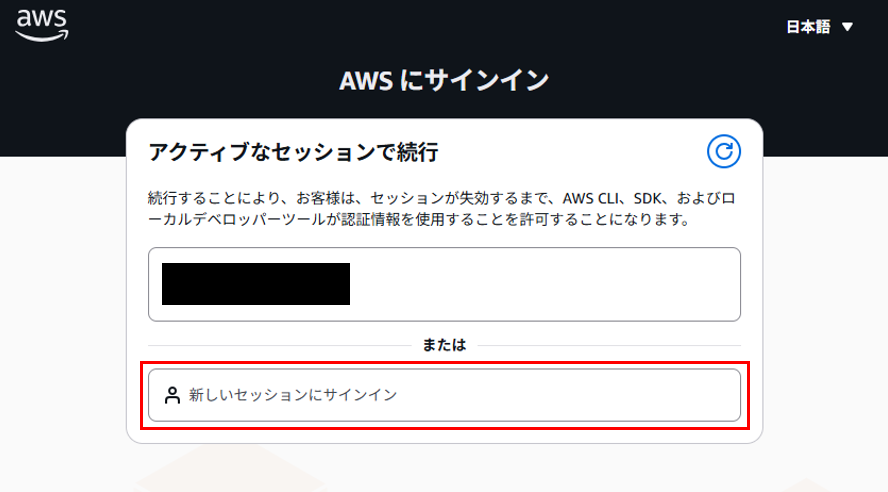
既存のセッションか新しいセッションを選択します。
ここでは新しいセッションにサインインします。
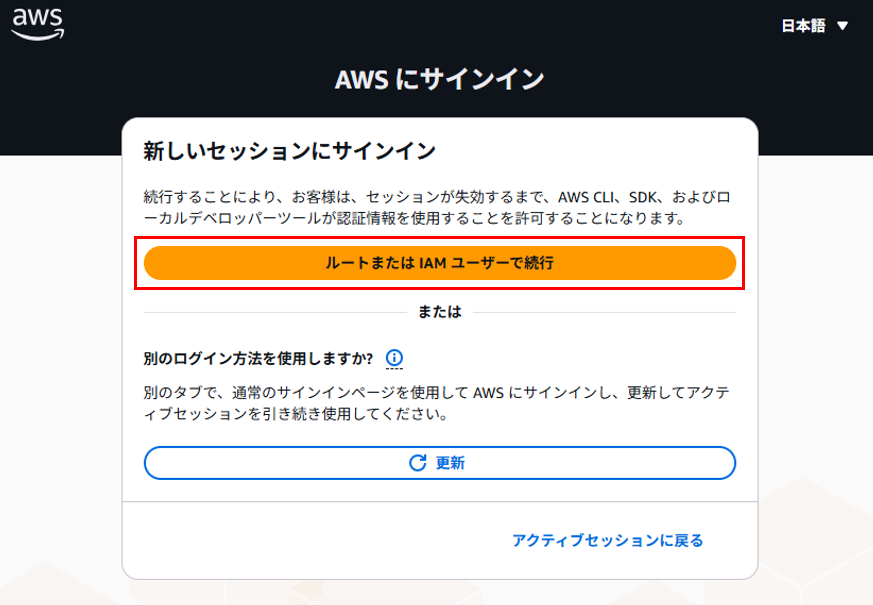
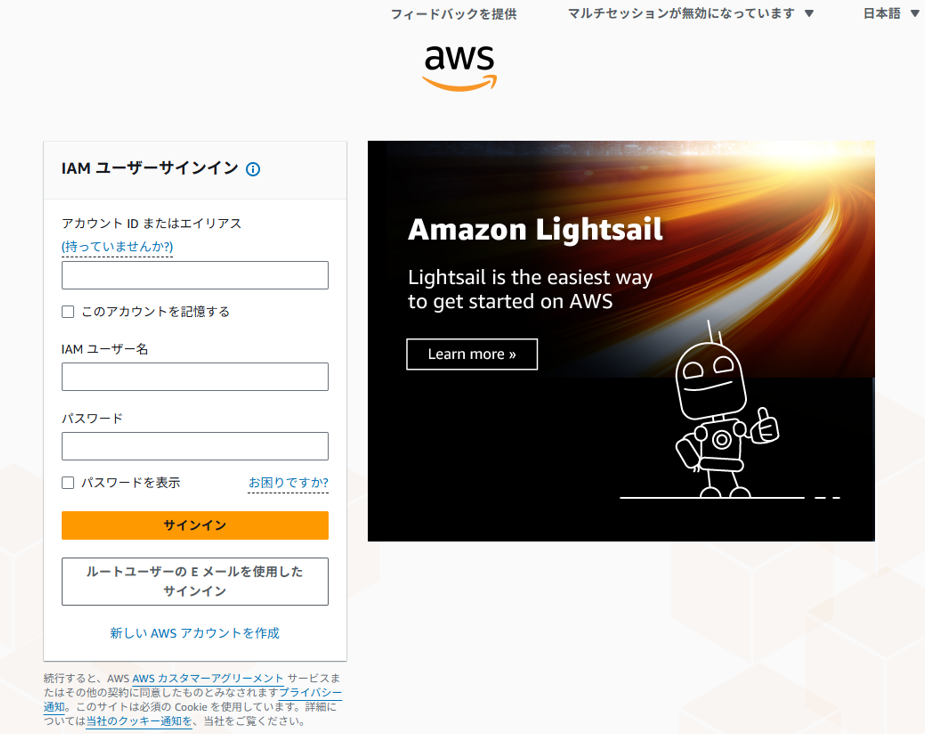
AWSマネジメントコンソールのログイン画面が表示されるので、ログインします。
ログインすると成功画面が表示されます。
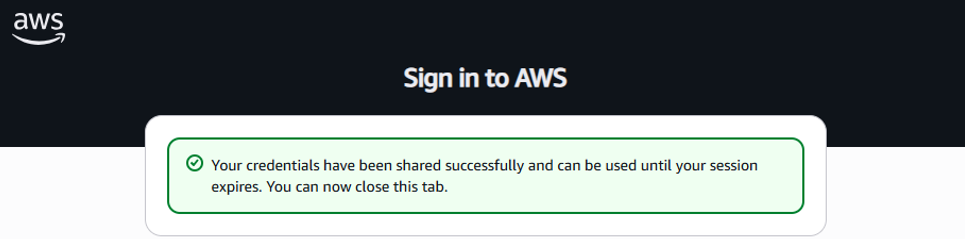
CLIではプロファイルの更新が完了した旨が表示されます。
Updated profile default to use arn:aws:iam::<AccountID>:user/<UserName> credentials.
使用しているID情報を確認するため以下のコマンドの結果を確認します。
>aws sts get-caller-identity
{
    "UserId": "AIDA2xxxxxxxxxx",
    "Account": "<AccountID>",
    "Arn": "arn:aws:iam::<AccountID>:user/<UserName>"
}
S3一覧も確認できます。
>aws s3 ls
2022-10-03 10:56:08 aws-cloudtrail-logs-xxxxx
2025-05-15 15:03:42 cf-templates-1vhvfxxxxx
2025-01-29 09:51:48 test-xxxxx
(省略)
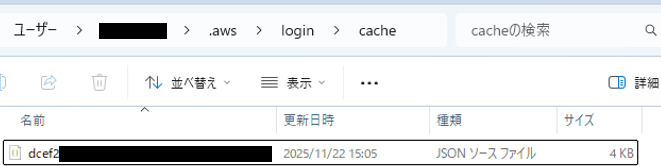
.awsフォルダにはloginフォルダが作成されており、.aws>login>cacheに一時的にキャッシュされた認証情報が格納されています。

{
    "accessToken": {
        "accessKeyId": "ASIA2XXXXXXXXXX",
        "secretAccessKey": "vMR5VXXXXXXXXXX",
        "sessionToken": "IQoxxxxx",
        "accountId": "<AccountID>",
        "expiresAt": "2025-11-22T06:20:06Z"
    },
    "tokenType": "urn:aws:params:oauth:token-type:access_token_sigv4",
    "clientId": "arn:aws:signin:::devtools/same-device",
    "refreshToken": "eyJ6axxxxx",
    "idToken": "eyJraxxxxx",
    "dpopKey": "-----BEGIN EC PRIVATE KEY-----\nMHcCAxxxxxxxxxx==\n-----END EC PRIVATE KEY-----\n"
}
まとめ
従来は、アクセスキーやシークレットアクセスキーといった長期的なアクセスキーをローカル環境に保持する必要がありました。
aws loginにより、長期的なアクセスキーを保持することなく、シンプルかつセキュアにAWS環境へアクセスできるようになりました。
非常に便利な機能なのでぜひ活用してきましょう。
